
Tips
5 Hacks To Make Your Phone A Productivity Tool


In this age of technology, a smartphone is more a necessity than a luxury. From connecting us to our loved ones to giving us access to information worldwide, there is nothing it cannot do for us. A smartphone, if used the right way, could prove to be an ultimate productivity tool, especially for aspiring entrepreneurs. It can be a source of inspiration and ideas and can be used for networking and communicating with employees. Simple organization and a little self control is all you need. Keep reading to find out how you can turn your phone into the ultimate productivity machine.
5 hacks to make your phone a productivity tool
1) Declutter

Now, this might seem a little tough, but to make the most out of your phone, you need to declutter it. Get rid of any apps which take away those precious hours from your day. Try and get down to a single home screen. Uninstall gaming apps, unnecessary music apps, streaming apps and you know the list. This can save you several hours which you can use to work on your goals.
2) Replace smartly

Now that you have removed all the apps which made you feel unproductive, you can replace these apps with some other apps which could increase your productivity. For instance, you could replace a music app with an app like Audible and listen to good audio books instead of music all the time. You can even download apps like Todoist, which can help in organizing and Duolingo, which can help you learn new languages.
Apps which help increase your efficiency.
Apps which help track your goals.
3) Use your home screen wisely

Now, your home screen is something you look at very frequently, so use it to your benefit. You can add your long term goals or visions to your home screen, this way you constantly get to see your goals. Apart from this, you can organize your home screen in such a way, all your productivity apps are on the first screen and the other not so productive apps like social media can be on the second or the third screen. This way, you are not tempted to use social media immediately.
4) Turn off notifications
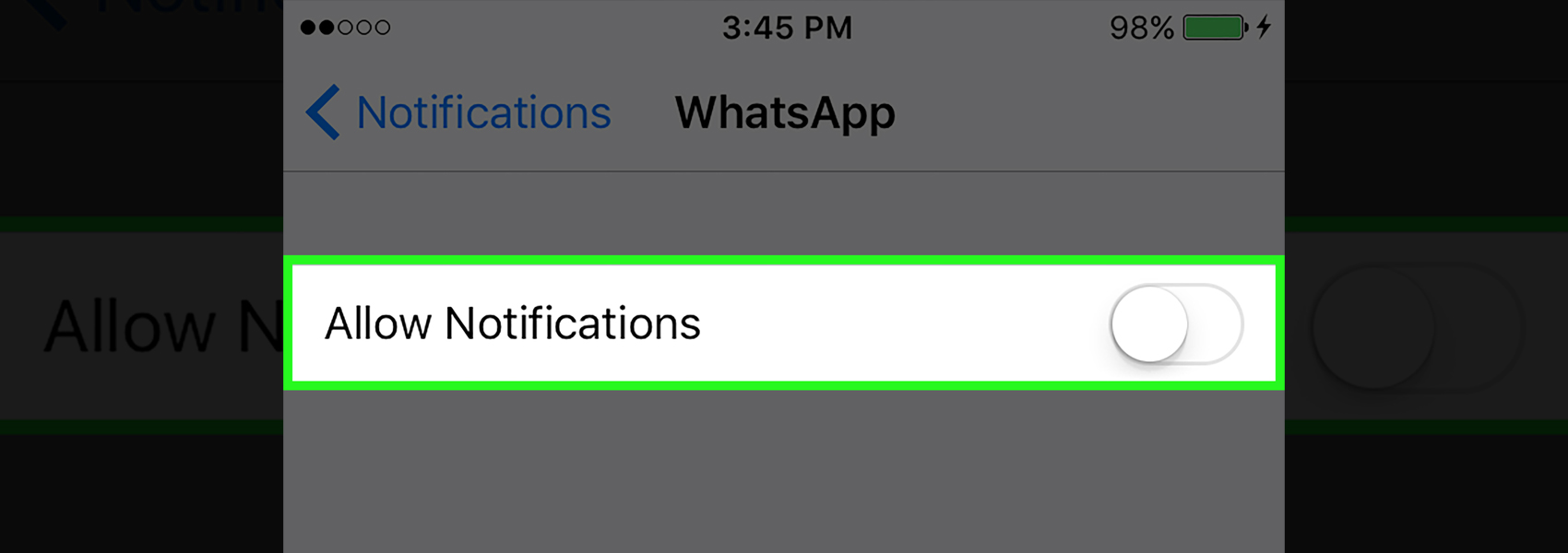
Turning off notifications for the unnecessary apps can save you more time than you could imagine. When you turn off notifications, you gain control over your phone. You are the one who decides when to check your phone, your phone does not decide it for you. So, turn off the notifications for all the apps, except the Phone app and badges also, if possible. This can help you can make the most of your phone. Choose a particular time for yourself and check your social media or other notifications only during that time.
5) Use alarms to organize your day
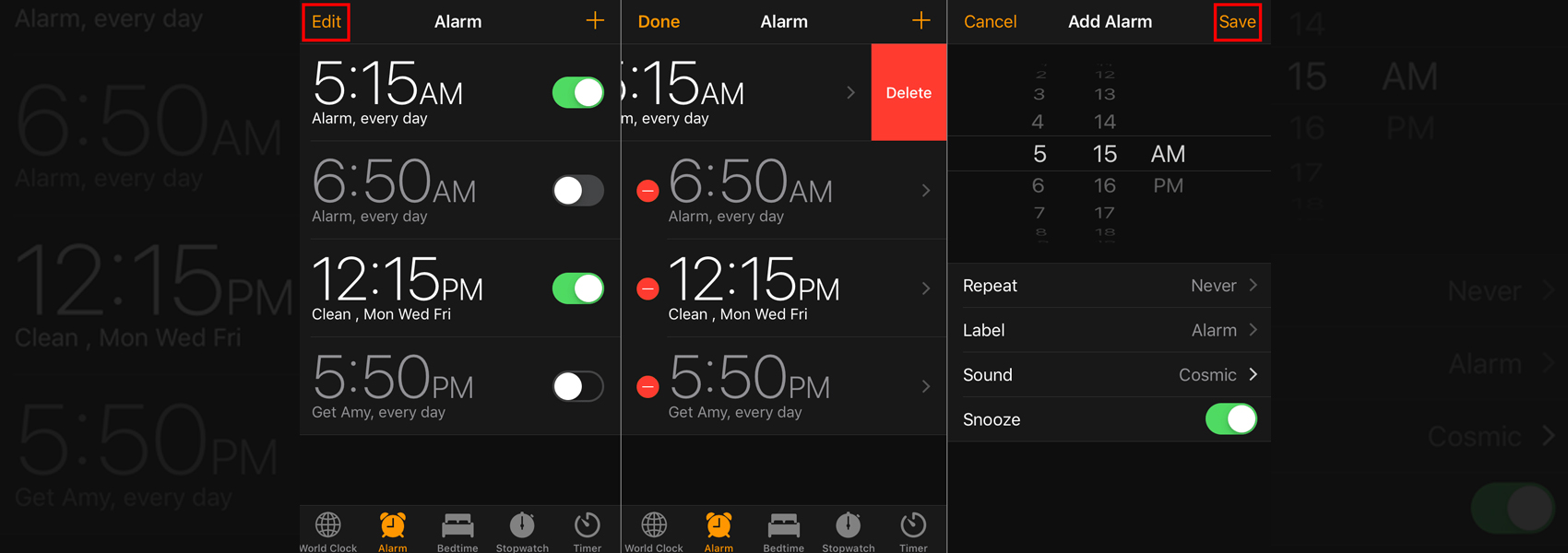
Alarms can be used for more than just waking up. Use various alarms throughout the day to help structure your day. This can help you make the most of your day by dividing it into small slots and notifying you whenever a slot ends. This way you know what to do and when.
A smartphone is one of the best inventions our world has seen. Using it in the right way can help you make the best of your life and could take you closer to your goals.








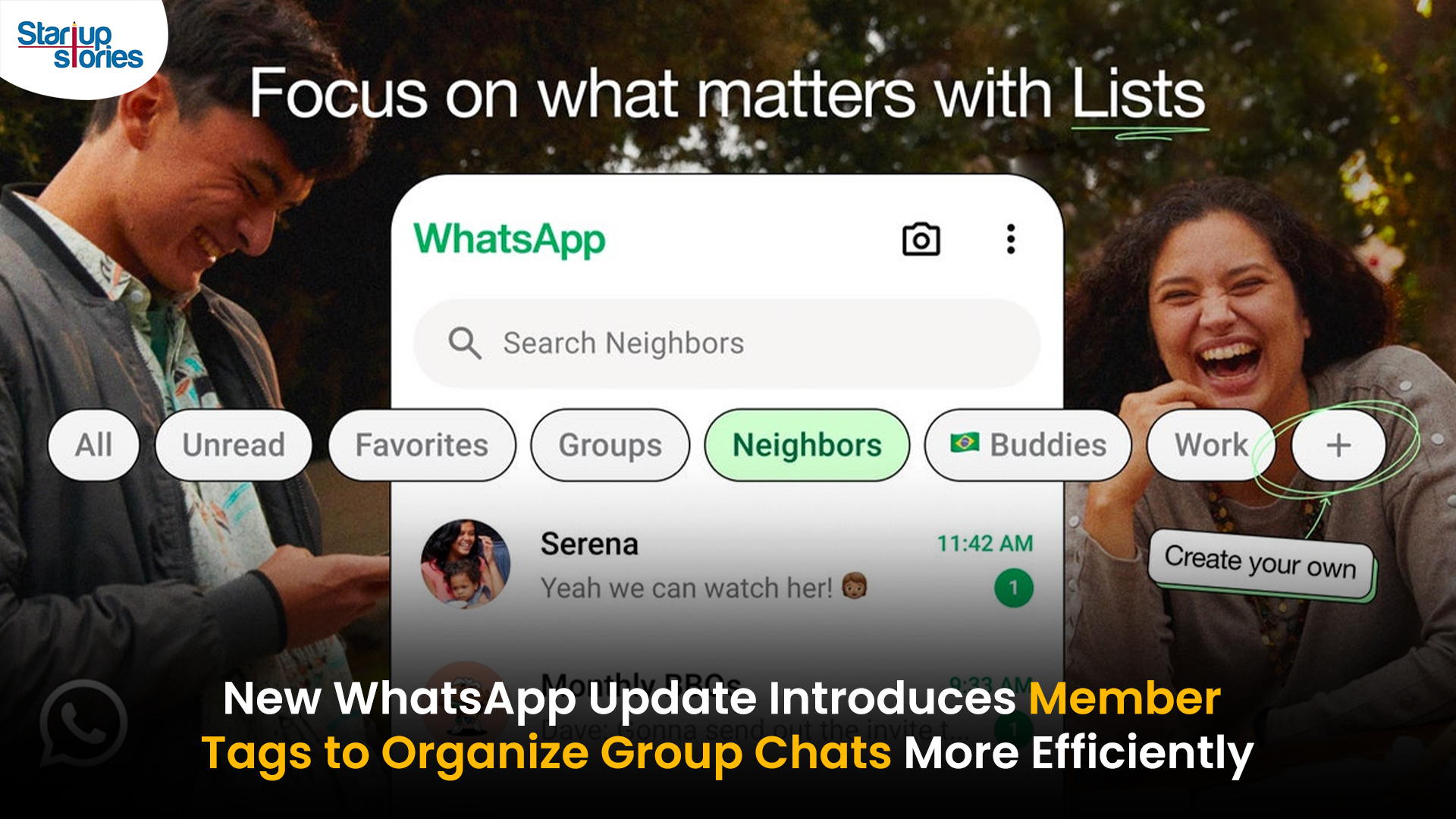
WhatsApp has rolled out a new “Member Tags” feature designed to make group management simpler and more organized. The update allows users to add short text labels next to their names in group chats such as Admin, Manager, Designer, or Coordinator helping others instantly identify roles and responsibilities. This feature is especially useful for large communities, workplaces, and project-based groups where multiple participants collaborate regularly.
With WhatsApp Member Tags, group members can customize labels that appear beside their names and within the participants list, providing better clarity during group conversations. The introduction of tags aims to cut down confusion in busy chats, making it easier to know who handles what. The feature is already rolling out for iOS users and is expected to reach Android devices soon as part of WhatsApp’s gradual global rollout. Users can add tags by simply going to the group info section, tapping their own name, and selecting “Add Member Tag.”
This update also benefits brands, creators, and businesses that rely on WhatsApp for communication and engagement. From marking support staff with titles like “Customer Support” or “Sales” to identifying moderators and event organizers in community groups, the feature brings a layer of professionalism to WhatsApp’s familiar interface. By enhancing group communication dynamics, the Member Tags feature strengthens WhatsApp’s position as one of the most efficient and business-friendly messaging platforms available today.

Google has introduced a new AI-powered feature for its Files by Google app, allowing users to easily interact with PDF documents. The “Ask about this PDF” feature, powered by Gemini, enables users to ask questions about the document’s content directly within the app.
How it Works
Access
The feature is available in the updated Files by Google app (version 16.0.5 and above). Users can download the latest version from the Google Play Store to access this functionality.
Functionality
Users can simply tap the “Ask about this PDF” button while viewing a document. This prompts the app to allow users to ask questions regarding the PDF content, such as:
- Summaries of sections
- Clarifications on specific paragraphs
- Details about tables and charts
AI Interaction
The app leverages the power of Gemini AI to provide accurate and informative answers based on the content of the PDF. This interaction enhances user engagement by making it easier to extract relevant information without manually scrolling through lengthy documents.
User-Friendly Experience
AI-generated responses are displayed as an overlay, enabling users to view both the original PDF and the AI-generated answers simultaneously. This feature streamlines the process of obtaining information from PDFs, making it particularly useful for students and professionals who frequently work with such documents.
Availability
Gemini Advanced Required
The “Ask about this PDF” feature is currently exclusive to users of Gemini Advanced, a subscription service that provides enhanced capabilities of Google’s AI tools.
Limited to Files by Google
At present, this feature is available only within the Files by Google app. However, there are expectations that similar functionalities may be integrated into other Google applications in the future, such as Google Drive.
Future Outlook
This new feature demonstrates Google’s commitment to integrating AI seamlessly into its products and services. By enhancing the user experience with innovative tools like “Ask about this PDF,” Google aims to improve productivity and accessibility for its users.
Expansion Plans
Given the positive reception of this feature, it is likely that Google will explore expanding Gemini’s capabilities across other platforms and applications, potentially offering similar functionalities for various document types and formats.
Conclusion
Google’s introduction of the “Ask about this PDF” feature in its Files by Google app marks a significant advancement in how users interact with digital documents. By leveraging Gemini AI, Google is not only enhancing productivity but also making information retrieval more efficient and user-friendly. As AI continues to evolve, features like these are expected to play a crucial role in transforming digital workflows across various sectors.

WhatsApp is revolutionizing how users handle voice messages with the introduction of its new Voice Note Transcription feature. Designed to cater to diverse user needs, this update ensures that you never miss out on voice messages, even in situations where listening isn’t an option—be it a noisy environment, an important meeting, or simply when audio isn’t convenient.
What Is Voice Note Transcription?
The Voice Note Transcription feature converts voice messages into text, allowing users to read the content instead of listening. This thoughtful solution addresses scenarios where audio playback may not be practical. With this addition, WhatsApp enhances communication efficiency, helping users stay connected regardless of their circumstances.
How Does It Work?
Using the transcription feature is straightforward:
- Enable the Feature: Navigate to Settings > Chats > Voice Message Transcripts to enable or disable the feature and select your preferred transcription language.
- Transcribing a Voice Note: Once activated, long-press the voice message you’ve received and tap ‘Transcribe’. The app will instantly generate a text version of the audio message for you to read at your convenience.
This process is handled entirely on your device, ensuring that the voice messages remain private. Neither WhatsApp nor external servers have access to the content, maintaining the platform’s commitment to privacy.
Privacy and Security
In line with WhatsApp’s dedication to user security, the transcription process is executed locally on the device. This ensures that your voice messages are never sent to external servers, and even WhatsApp itself cannot access them. By integrating this feature while preserving its robust end-to-end encryption, WhatsApp continues to prioritize user trust.
Key Privacy Features
- Local Processing: Transcripts are generated entirely on-device, ensuring that no one else—not even WhatsApp—can access your personal messages.
- End-to-End Encryption: The feature maintains WhatsApp’s strong privacy standards, ensuring that only the sender and recipient can access their voice messages.
Global Rollout and Language Support
The Voice Note Transcription feature is rolling out globally over the coming weeks. Initially, it supports selected languages such as English, Spanish, Portuguese, Russian, and Hindi. WhatsApp has confirmed plans to expand its language offerings soon, ensuring wider accessibility for users worldwide.
Why This Feature is a Game-Changer
This new addition addresses a common pain point for WhatsApp users: handling voice messages when audio playback isn’t feasible. Whether you’re in a crowded space, attending a quiet event, or dealing with a lengthy voice note, the transcription feature provides a convenient alternative.
Benefits of Voice Note Transcription
- Multitasking Convenience: Users can skim through voice messages while juggling other responsibilities without needing headphones.
- Accessibility Improvement: The feature enhances accessibility for individuals with hearing impairments or those who prefer text-based communication over audio.
- Enhanced Communication: Merging the personal touch of voice communication with the convenience of text allows for more flexible interactions.
Conclusion
By introducing the Voice Note Transcription feature, WhatsApp continues to innovate and enhance its platform. This tool exemplifies how technology can adapt to diverse user needs while maintaining security and privacy. Keep an eye on your app settings—this feature is rolling out soon and is set to make staying connected easier than ever. As WhatsApp expands its capabilities, users can look forward to a more personalized and efficient messaging experience that caters to their evolving communication preferences.

Common Governance Challenges Faced by Nonprofit Organizations in India

How Lenskart Made Indians Comfortable Buying Glasses Online


